Reviewing
Vocabulary
Publication
Publications are organizations that manage submissions. Examples of publications can be publishers or newsletters.
Submission
A work to be collaboratively reviewed. A submission is commonly in a written format. Currently, Pilcrow only supports written formats. Submissions are created by a submitter and submitted to a publication. Submission content can be provided to Pilcrow by file upload or direct text input. Examples of submissions are articles, essays, or book chapters.
Review

An examination of a submission. Editors, review coordinators, reviewers, and submitters can participate in a review. Reviews are managed by review coordinators.
Overall Comment
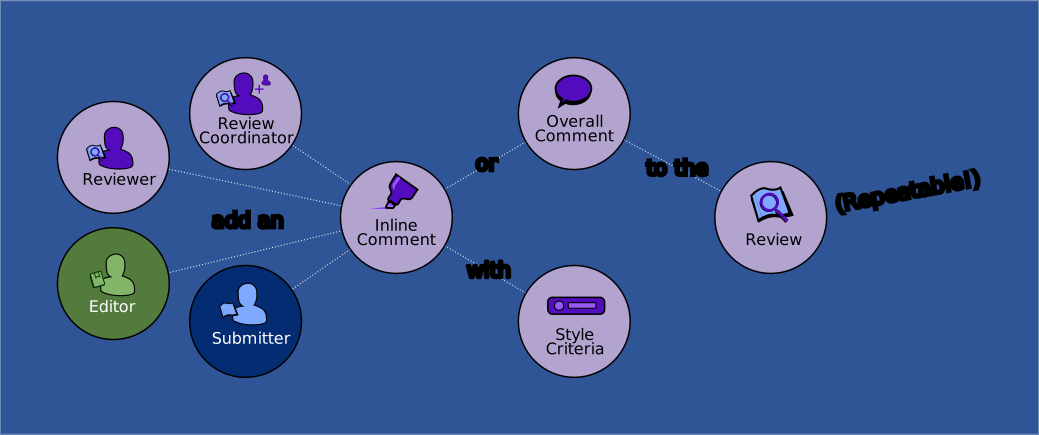
This is a comment in which users can comment on the submission broadly or generally. These do not have style criteria associated with them.
Inline Comment
This is a comment in which users can highlight portions of the submission and make comments inline with the content. Users can associate style criteria with their inline comments.
Style Criteria
Also called "review criteria." These are defined by a publication. Users making inline comments on submissions can pick from style criteria to associate with their inline comments. Style criteria are not associated with overall comments.
Roles
Editor

A publication-relative user who manages a publication. Editors decide if a submission is accepted for publication.
Submitter

A submission-relative user that creates a submission.
Examples of submitters are: authors, coauthors, or creators. Anyone who intends to submit content and have it peer reviewed collaboratively by a publication assumes the role of submitter.
Reviewer

A submission-relative user who reviews a submission. Reviewers are invited to review a submission by a review coordinator.
Review Coordinator
A submission-relative user who manages a review of a submission. Review coordinators invite reviewers to review submissions.
Overview
Step 1
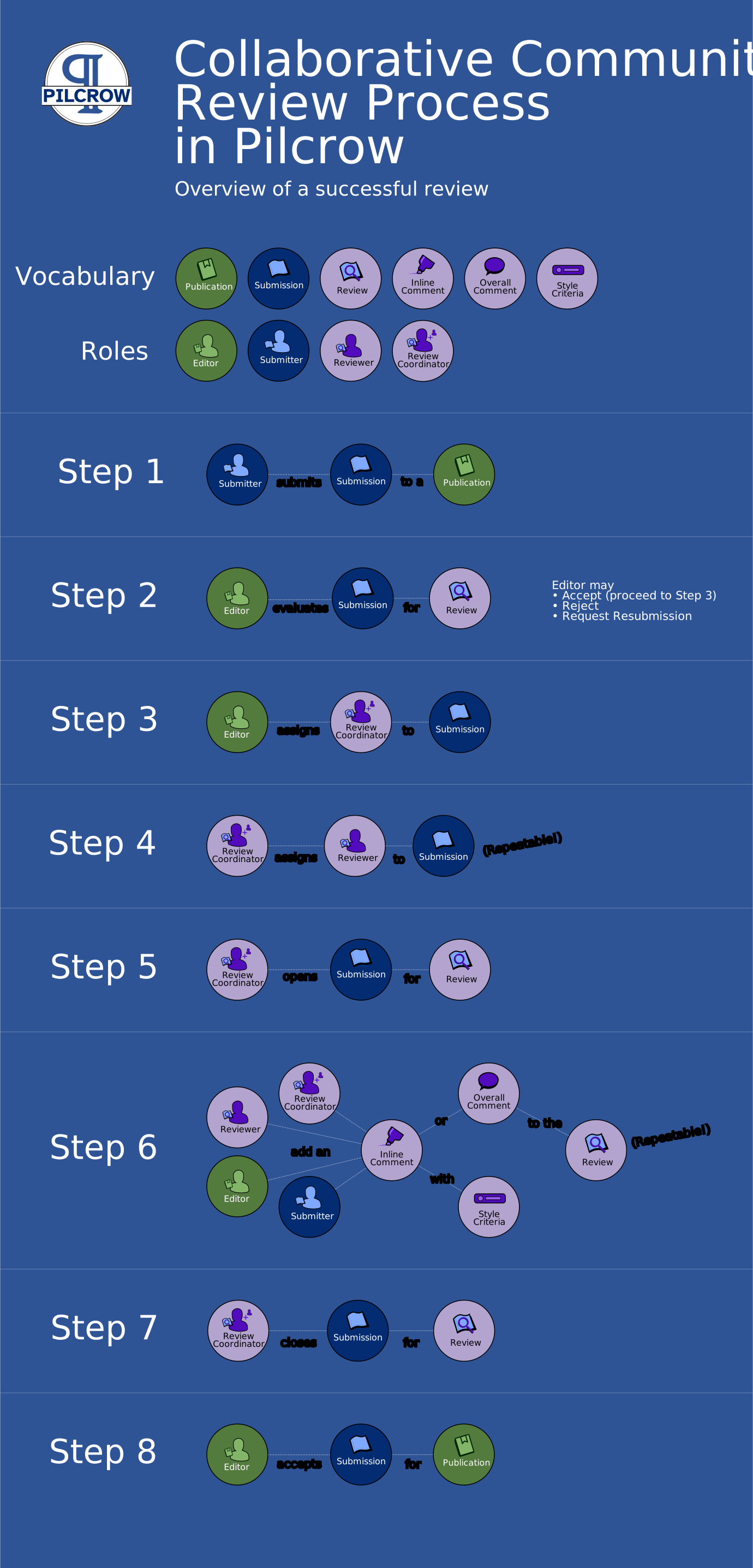
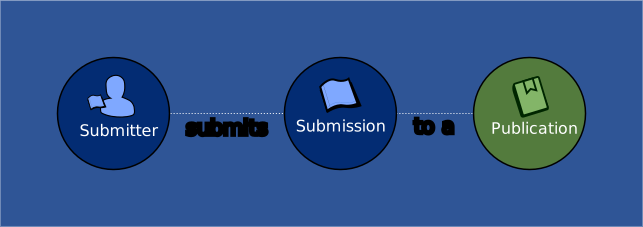
A submitter chooses a publication in Pilcrow to submit a submission. The submitter may then add submission content by file upload or direct text input. When finished, the submitter submits the submission.
Step 2
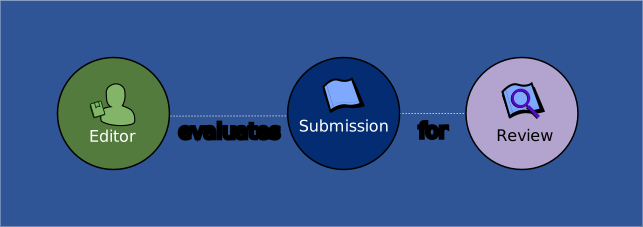
Before any review can take place, an editor of the publication evaluates the submission's fitness for review. If the editor deems the submission reviewable, the editor proceeds to step 3. Otherwise, the editor can reject the submission or request it for resubmission.
Step 3
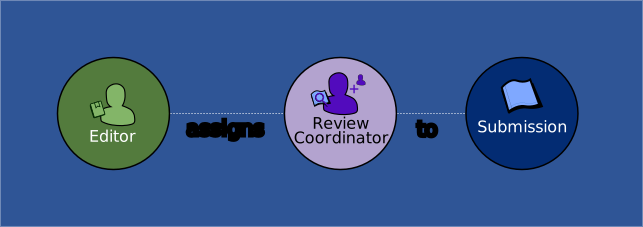
The editor assigns a review coordinator to the submission. The review coordinator will be responsible for managing the review. This involves making decisions that change the submission's status and ensuring all participants in the review are updated.
Step 4
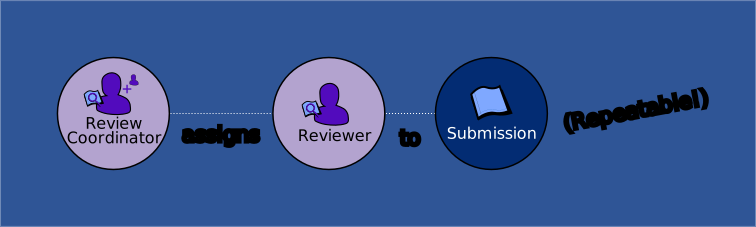
The review coordinator assigns reviewers to the submission as needed.
Step 5
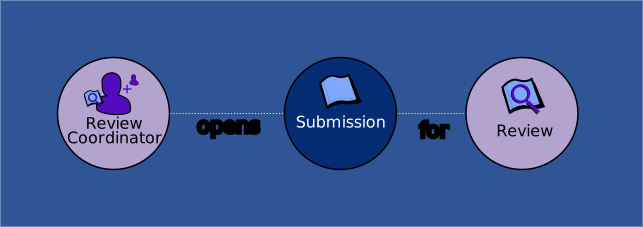
The review coordinator opens the submission for review.
Step 6
All participants in the review can add either:
Step 7
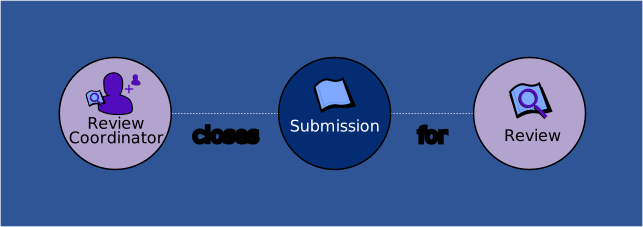
Once the review coordinator deems the review complete, the review coordinator closes the review.
Step 8
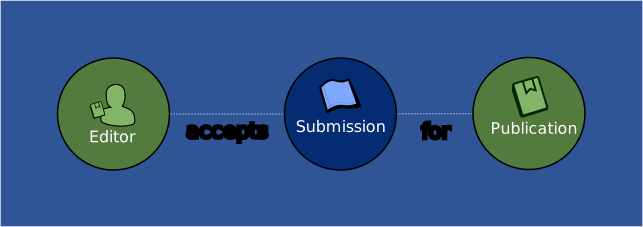
The editor makes a decision on whether to accept the submission to be included in their publication or not. If the editor is satisifed with the review, the submission may be accepted by the editor for publication.
Find a Document You Are Assigned
Once you have successfully registered for the platform you can be assigned to review a submission by an Editor or Review Coordinator of the publication you are working with.
When you log into the system you should see any reviews you are assigned to in the Reviews table on your Dashboard. If you do not see anything there or prefer to see a different view you can choose the “Reviews” tab at the top of the page in the menu bar.
To review the submission you can either click on the Submission Title in the table, or you can click on the three vertical dots under “Actions” on the right side of the table and choose “Review”
Also from the Actions table, you can choose to visit the Submission Details page which provides detailed information about the submission including who is assigned to it, and any activity associated with the submission.
NOTE
You can also access the Submission Details page when you are reviewing the submission by clicking on the arrow facing left in the upper left corner of the document next to the title and the status indicator.
Submission Details Page
The Submission Details page provides detailed information about the submission including who is assigned to it and any activity associated with the submission.
From this page, you can find email addresses for the submitter, review coordinator, and fellow reviewers. You can also see the Activity log for the submission which includes when the status of the document has been changed and any comments associated with the change of status from the user who changed it.
The Review Page
When you open a submission to the review page you will see the submission content on the left side of the screen, the Overall Comments section beneath the submission content, and the Inline Comments on the right. Above the submission text are controls for font, font size, dark mode, and shortcuts to the Overall Comments section. The secondary navigation bar above it gives the title of the submission, the status of the submission, and a button on the left to return to the Submission Details page, as well as the buttons on the right side to toggle whether or not inline comments and their highlights are shown.
Document and Controls
Because digital documents do not require page numbering the Pilcrow system uses paragraph numbering to allow reviewers and authors to identify and reference portions of the document. You will see a pilcrow symbol followed by the paragraph number to the left of the first sentence of any given paragraph. Pilcrow also has some built-in accessibility features to help with your ability to make modifications to the visual display of the submission.
- light/dark mode is provided to allow you to switch between a light or dark background
- text size and font allows you to change the fonts and size of the text in the document as you review it.
How to make an inline comment
To make an inline comment in Pilcrow find the area of the document that you wish to comment on and highlight it. Once you have highlighted a word, sentence, paragraph, or area you wish to comment on you can press the plus button that shows up above the highlighted area to open the inline comment form. This form features an area to write your comment along with minimal formatting options, and then the ability to tag the comment with any or all of the review criteria identified by the publication you are working in. To tag your comment with a particular criterion, use the switch button to the right of the criteria you wish to tag. once you have made your comment and tagged it appropriately press the submit button to add the comment.
To reply to an existing one, use the purple reply button under the comment to open the reply area. This looks much like the form for inline comments. Once you have made your comment reply you can press Submit to add it to the comment thread.
When there are one or more replies to a comment in the Inline Comments section you will see that the purple “Reply” button changes to one that is dark blue and labeled, “Show Replies.” You will see all replies associated with the original inline comment by clicking on this button. You can also add a comment reply of your own to any of the replies by clicking on the triple dot menu for the comment you’d like to reply to and selecting “Quote Reply.” Each comment or reply will show how long ago it was made.
How to make an overall comment
You can add overall comments to the submission by scrolling to the bottom of the submission. You also can click the small grey plus that is near the “light mode” text at the top of the document to be taken to the Overall Comments section at the bottom. This can be helpful if the document is long.
Once at the bottom of the page, you can use the Overall Comments box to add additional comments that pertain to the submission as a whole and/or engage in conversation with the author and other reviewers about the submission more broadly. The Overall Comments area functions the same way other comments do, with the ability to enter your comments and then press submit once you are finished.